
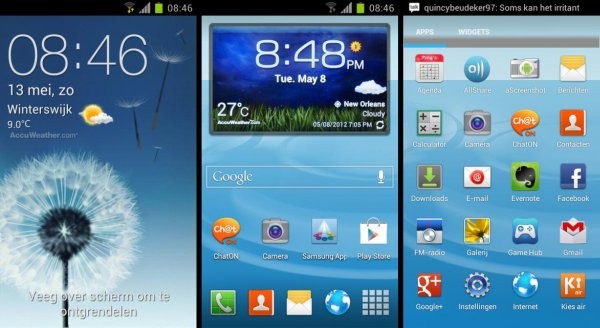
The Samsung Galaxy S3 was just recently announced and impressed everyone with the amazing hardware and software features (though people were divided on the design). ICSGS3 is an Ice Cream Sandwich Android 4.0 based custom ROM for the Galaxy S I9000 that is themed to look like the Galaxy S3, and as you can see in the screenshot above, it does a pretty good job.
Here’s a look at some of the features of the ROM:
- Themed apps like Messaging, Agenda, Calendar, Contacts, Gallery, Email, Google Talk, and many more
- Beats audio add-on for improved sound
- Overclockable to 1.4 GHz
- Based on XXLPH Galaxy S2 Ice Cream Sandwich Android 4.0.3 port
- Galaxy S3 wallpapers that can be downloaded → here.
Important! This ROM is based on the Galaxy S2 XXLPH ICS firmware port for the Galaxy S, so there are quite a few things that do not work. And it’s not certain they will work any time soon, so keep that mind before you try this ROM.
Things not working in the ROM as of the time of this guide are listed below. Be sure to check the official development page (linked in step 5 of the procedure) for the most current list of issues.
- Video Camera
- HD Video Playback
- Vibrator
- Microphone in applications.
- Lots of other minor stuff.
Compatibility
This ROM and the guide below are compatible only and only with the Samsung Galaxy S, model number i9000. It’s not compatible with any other device and may render an incompatible device unusable. Check your device model in Settings » About phone.
Warning!
The methods and procedures discussed here are considered risky and you should not attempt anything if you don’t know exactly what you are doing. If any damage occurs to your device, we won’t be held liable.
ROM Developer → mkalter
How to Install ICSGS3 ROM on Galaxy S i9000
- This procedure will wipe all your apps, data and settings (but it will NOT touch your SD cards, so don’t worry about those). Backup your Apps and important data — bookmarks, contacts, SMS, APNs (internet settings), etc. This Android backup guide would help you.
Important! Don’t forget to at least make a backup of your APN settings, which you can restore later if your data connection does not work after installing the ROM. Use the backup guide to find out how. - Remove sim card lock, if you have set it earlier. Go here: Settings » Location and Security » Sim card lock » checkbox should be clear (not selected).
- Flash the stock XXJW4 firmware by using → this guide.
- Root XXJW4 to obtain Clockworkmod recovery (CWM) by using → this guide.
- Download the latest version of the ROM from the official development page.
- Transfer the downloaded zip file from step 5 to the internal SD card (not the micro SD).
- Turn off your Galaxy S and wait for complete shutdown (wait for vibration and check capacitive button lights).
- Then, boot into CWM recovery. To do so, press and hold these 3 buttons together: Volume Up, Home, and the Power button till the screen turns on, then let go of the buttons.
In recovery, use Volume keys to scroll up and down and power key to select an option. - Select wipe data/factory reset, then select Yes on next screen to confirm. Wait a while till the data wipe is complete.
- Now select install zip from sdcard, then select choose zip from sdcard. Scroll to the ROM file on the sdcard and select it.
- Confirm installation by selecting Yes – Install _____.zip on the next screen. The ROM will start installing.
- The phone will reboot into recovery in the middle of installation and then continue installing the ROM. However, if it simply reboots but doesn’t continue installation, repeat steps 10 and 11.
- After the installation is complete, select go back and then select reboot system now to reboot your phone.
Congratulations, the ICSGS3 ROM is now running on your Galaxy S I9000. Visit the official development page for more info and to get the latest updates on the ROM. Share your thoughts on the ROM in the comments below.



aahhhh not impressed because of themed apex launcher wanted a real s3 tw 🙂
& wid some of gesture control tooo 😉 😛
Well, as the SGS3 isn’t out yet, you can’t really get any actual software from the S3 unless someone leaks it like the Flipboard app got leaked 😛
aahhhh not impressed because of themed apex launcher wanted a real s3 tw 🙂
& wid some of gesture control tooo 😉 😛
Well, as the SGS3 isn’t out yet, you can’t really get any actual software from the S3 unless someone leaks it like the Flipboard app got leaked 😛
unable to download S3 wallpapers from the link given above….!!
unable to download S3 wallpapers from the link given above….!!
can it run with s2?
No, a particular phone’s ROMs can only work on that phone, not on any other phone. Never try it.. 🙂
can it run with s2?
No, a particular phone’s ROMs can only work on that phone, not on any other phone. Never try it.. 🙂
why the wifi can’t be use in my SGS ?
Use this app to fix WiFi – http://forum.xda-developers.com/showthread.php?t=1445766
why the wifi can’t be use in my SGS ?
Use this app to fix WiFi – http://forum.xda-developers.com/showthread.php?t=1445766