
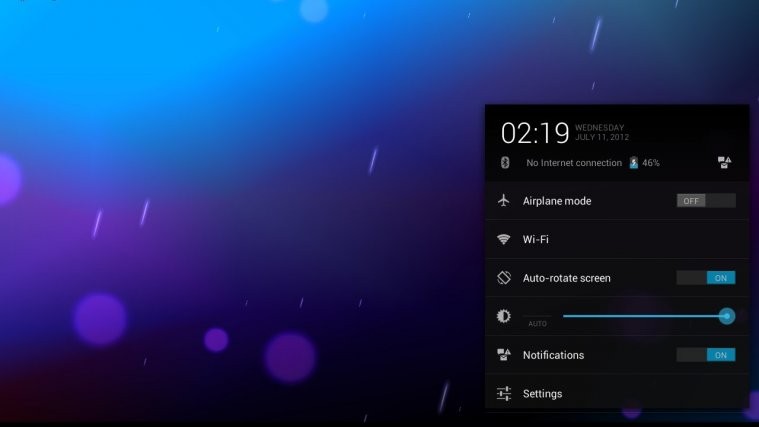
Gather around Galaxy Tab 10.1 owners, an alpha build of Android 4.1.1 Jelly Bean has been released for it by XDA Senior Member MapleSyrup, using the official Jelly Bean sources released by Google a couple of days ago. Jelly Bean brings a smoother interface, improved Google Search functionality thanks to Google Now, a better keyboard, and more, and you can try it out on your Tab 10.1 with this alpha build.
[Important] This is purely an experimental build for the Wi-Fi-only variant (P7510) and only released to give you a preview of Jelly Bean. A lot of things do not work and the ROM is not currently stable for daily use, though it should get better and more usable over the coming days/weeks.
Here’s a list of what currently works and what doesn’t in the ROM:
NOT WORKING
- Camera
- Audio
- Wi-Fi
- Keyboard dock (it can work, but it wasn’t stable)
WORKING
- Pretty much everything else, but things may fail.
Read on to find out how you can install the alpha build of Android 4.1.1 on your Galaxy Tab Wi-Fi-only variant.
Compatibility
This firmware and the guide below are compatible only and only with Galaxy Tab 10.1 Wi-Fi model, model number P7510. It’s not compatible with other Galaxy Tab 10.1 variants or the 3G variant or with any other device. Check your device’s model number in: Settings » About tablet.
Warning!
The methods and procedures discussed here are considered risky and you should not attempt anything if you don’t know completely what it is. If any damage occurs to your device, we won’t be held liable.
How to Install Android 4.1.1 Jelly Bean on Galaxy Tab 10.1 Wi-Fi
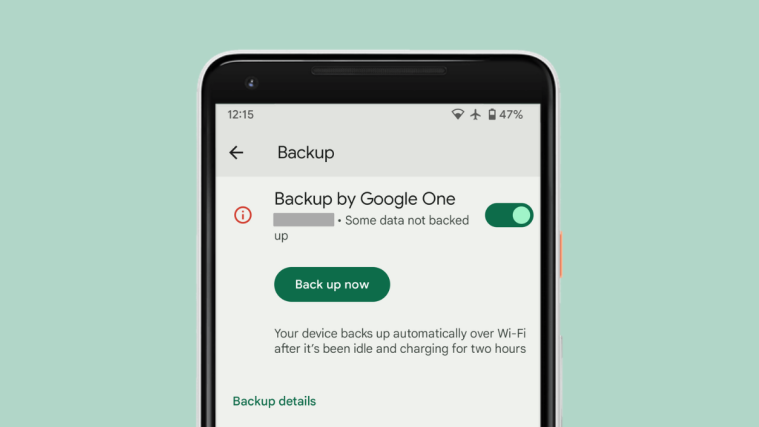
- This procedure will wipe all your apps, data and settings (but it will NOT touch your SD cards, so don’t worry about those). Backup your Apps and important data — bookmarks, contacts, SMS, APNs (internet settings), etc. This Android backup guide would help you.
Important! Don’t forget to at least make a backup of your APN settings, which you can restore later if your data connection does not work after installing the ROM. Use the backup guide to find out how. - Make sure you have ClockworkMod recovery installed on your device.
- Download the latest version of the ROM from the official development page.
- Copy the downloaded zip file to the internal SD card.
- Now, turn off the tablet, then boot into CWM recovery. To do so, power on the tablet while holding down the Volume Up button, then when the screen turns on, let go of the power button but keep holding the Volume Up button till a menu shows up. Here, press Volume Down to highlight the recovery mode icon, then press Volume Up to enter recovery.
In recovery, use the volume buttons to navigate/scroll and the power button to select options. - Perform a Nandroid Backup of your existing ROM, so that you can always restore it from recovery if something does not work out with this rom. To perform a backup, select Backup and Restore. On the next screen, select Backup again. Go back to main recovery menu after backup is complete.
- Select wipe data/factory reset, then select Yes on next screen to confirm. Wait a while till the data wipe is complete (this will not erase your personal files on the SD card).
- Now select install zip from sdcard, then select choose zip from sdcard. Scroll to the ROM file on the sdcard and select it.
- Confirm installation by selecting Yes – Install _____.zip on the next screen. The ROM will start installing.
- After the installation is complete, select go back and then select reboot system now to reboot your tablet and boot into Android 4.1.1 Jelly Bean.
The alpha build of Android 4.1.1 Jelly Bean is now installed on your Galaxy Tab 10.1 (Wi-Fi). Visit the official development page for more info and to get the latest updates on the ROM. Share your thoughts on the ROM in the comments below.




The ROM download link should be to http://forum.xda-developers.com/showthread.php?t=1765254
Thanks a lot for pointing it out, corrected.
The ROM download link should be to http://forum.xda-developers.com/showthread.php?t=1765254
Thanks a lot for pointing it out, corrected.
ill stick woth AOPK for now, audio is a must for me haha, thanks for the post Kapil
ill stick woth AOPK for now, audio is a must for me haha, thanks for the post Kapil